Session 2: Turtlesim with ROS2
Learning Goals
Welcome to this exciting session where you’ll dive into the world of ROS2 with a fun twist using Turtlesim! Here’s what we’ll explore:
Navigating your ROS file system
Creating and compiling your first ROS2 Python nodes
Using the command line to interact with ROS2 and inspect running topics and messages
Commands at a Glance
Open a new terminal:
ctrl-alt-tOpen a new tab in an existing terminal:
ctrl-shift-tStop an active process:
ctrl-c
Let’s Get Turtlesim Moving!
We’re going to have some fun with Turtlesim and make our turtle dance! 🐢
Task: Turtlesim Adventure
Start the Turtlesim Node: Launch Turtlesim and let’s see our turtle in action.
ros2 run turtlesim turtlesim_node
List Active Nodes: Check out all the nodes currently running.
ros2 node list
Inspect Node Topics: Find out what topics the Turtlesim node is using.
ros2 node info /turtlesim
Make the Turtle Move: Write a node to make your turtle move in a straight line. You can overwrite ‘my_node’ of the ‘my_package’ ROS2 package using Visual Studio Code. Here’s the python program to do it:
import rclpy
from rclpy.node import Node
from geometry_msgs.msg import Twist
import time
from time import sleep


class TurtleMover(Node):
    def __init__(self):
        # Initialize the Node with the name 'turtle_mover'
        super().__init__('turtle_mover')

        # Create a publisher for the turtle's movement
        self.publisher = self.create_publisher(Twist, "/turtle1/cmd_vel", 1)

    def move_turtle(self, duration=5):
        # Move the turtle for the specified duration
        end_time = time.time() + duration
        while time.time() < end_time:
            rclpy.spin_once(self)
            twist_msg = Twist()
            twist_msg.linear.x = 0.5
            self.publisher.publish(twist_msg)
            sleep(0.1)

    def cleanup(self):
        # Shutdown the node (usually done outside the node itself)
        self.destroy_node()
        rclpy.shutdown()


def main():
    # Initialize ROS2
    rclpy.init()

    # Create an instance of TurtleMover and move the turtle
    turtle_mover = TurtleMover()
    turtle_mover.move_turtle(duration=5)

    # Cleanup and shutdown ROS2
    rclpy.shutdown()


if __name__ == "__main__":
    main()
Explanation
Create a Node:
class TurtleMover(Node):
    def __init__(self):
        super().__init__('turtle_mover')
The code starts by creating a class called
TurtleMoverthat inherits fromNode. This initializes a ROS2 node with the nameturtle_moverto control the turtle.Create a Publisher:
self.publisher = self.create_publisher(Twist, "/turtle1/cmd_vel", 1)
Inside the constructor, a publisher is created to send movement commands to the turtle. It publishes messages of type
Twistto the/turtle1/cmd_veltopic.Move the Turtle:
def move_turtle(self, duration=5):
    end_time = time.time() + duration
    while time.time() < end_time:
        rclpy.spin_once(self)
        twist_msg = Twist()
        twist_msg.linear.x = 0.5
        self.publisher.publish(twist_msg)
        sleep(0.1)
The
move_turtlefunction moves the turtle forward for a specified duration (default is 5 seconds). The turtle’s speed is set withtwist_msg.linear.x = 0.5, and the command is published in a loop.Shutdown the Node:
def cleanup(self):
    self.destroy_node()
    rclpy.shutdown()
The
cleanupfunction stops the node and shuts down ROS2 after the turtle has finished moving.Main Function:
def main():
    rclpy.init()
    turtle_mover = TurtleMover()
    turtle_mover.move_turtle(duration=5)
    rclpy.shutdown()
The
mainfunction initializes ROS2, creates an instance ofTurtleMover, moves the turtle, and then shuts everything down.Note: if you want to create a new node, create a new python file and mention it in setup.py and then build the ROS2 workspace again.
Watch your turtle zoom across the screen! 🐢💨
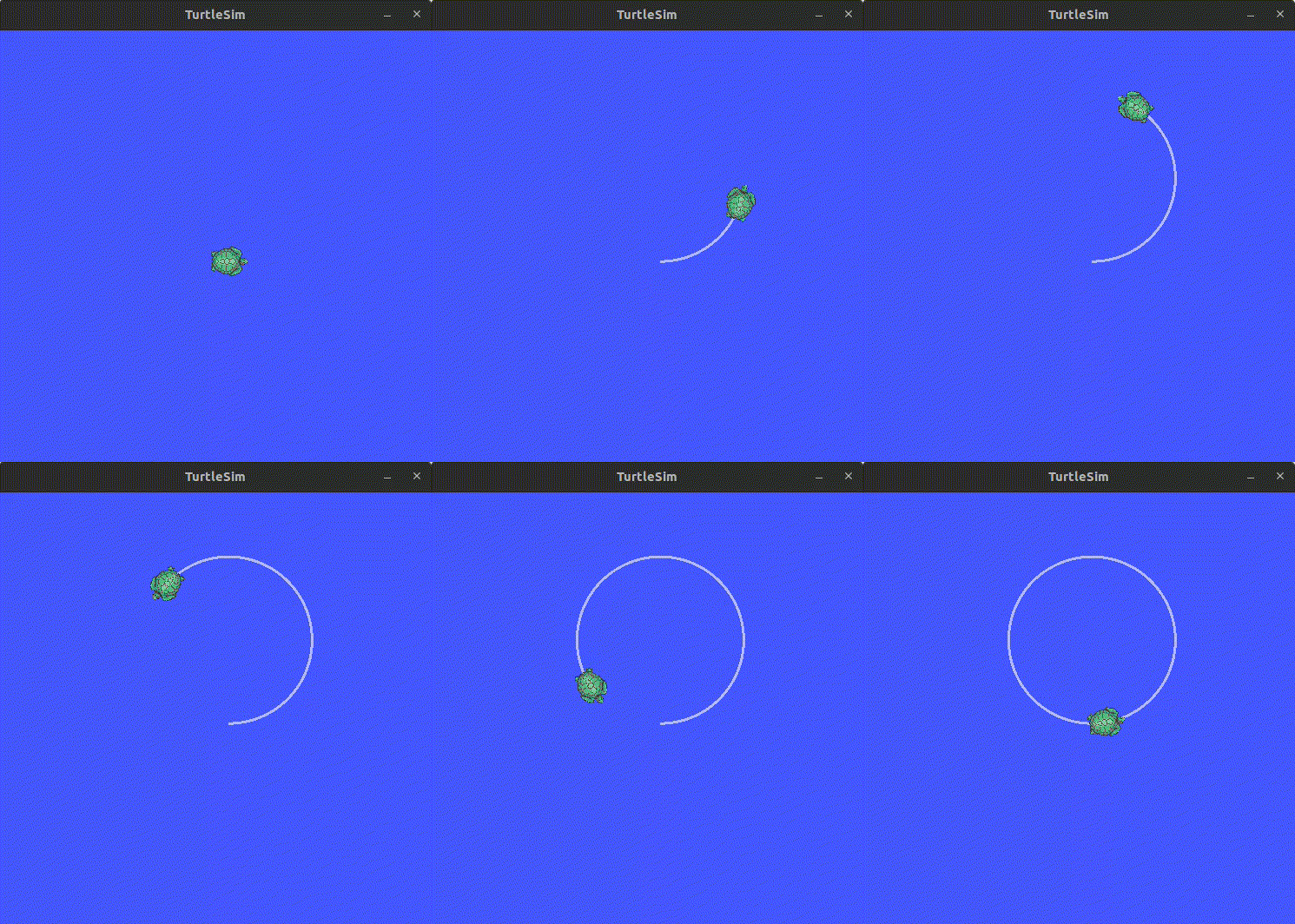
Task: Turtlesim Challenge - I
Enjoy this GIF of Turtlesim in action:
Hint
Want to make your turtle twirl and move at the same time? 🌀 Give it a little angular z velocity too! Try this out:
twist_msg.linear.x = 0.5
twist_msg.angular.z = 0.5
Watch your turtle spin around while it moves! 🎉
Task: Turtlesim Challenge - II
Spawn another turtle and give negative angular z velocity to make it move in the opposite direction. Can you make the two turtles meet at the center of the screen? A second turtle can be spawned using the following command:
ros2 service call /spawn turtlesim/srv/Spawn "{x: 5.5, y: 5.5, theta: 0.0, name: 'turtle2'}"
Note: This can also be done using the Python script.
What’s Next?
You’ve done a great job so far! Continue to experiment with ROS2 and have fun making your turtle do all sorts of cool tricks. Remember, exploring and playing around with the system is the best way to learn.
Stay Curious and Keep Tinkering!